Getting your new VCSA deployment certified
So you just installed a new vCenter Server Appliance (VCSA) and when you want to go to the web-interface to configure the server, you get the nasty HSTS message saying it is not safe to continue. Where in older browser versions you were able to click “accept and proceed”, in todays browsers this option is no longer available.
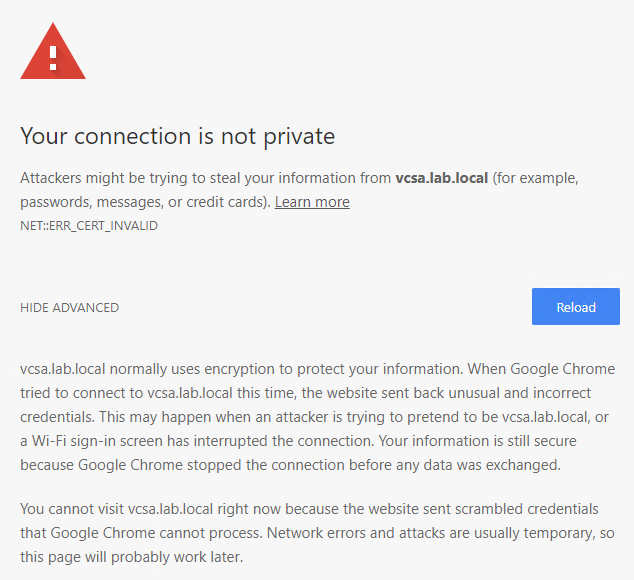
Luckily most times you can get around this problem by using the hostname in the URL instead of the FQDN. So https://vcsa instead of https://vcsa.domain.tld.
But even if that gets you to the vCenter homepage, you’ll be greeted by an error message stating: “[400] An error occurred while sending an authentication request to the vCenter Single Sign-On server – An error occurred when processing metadata during vCenter Single Sign-On setup: the service provider validation failed. Verify that the server URL is correct and is in FQDN format, or that the hostname is a trusted service provider alias”.

As you are still in the process of configuring the VCSA and you can’t login, you also cannot change the self-signed certificate of the VCSA, what leaves you in an little cache22 situation.
Now there are two options to get around this problem. The first one is downloading the Trusted Root CA certificates of VMware and installing them in the trusted root store on the computer you use to connect to the new vCenter server.
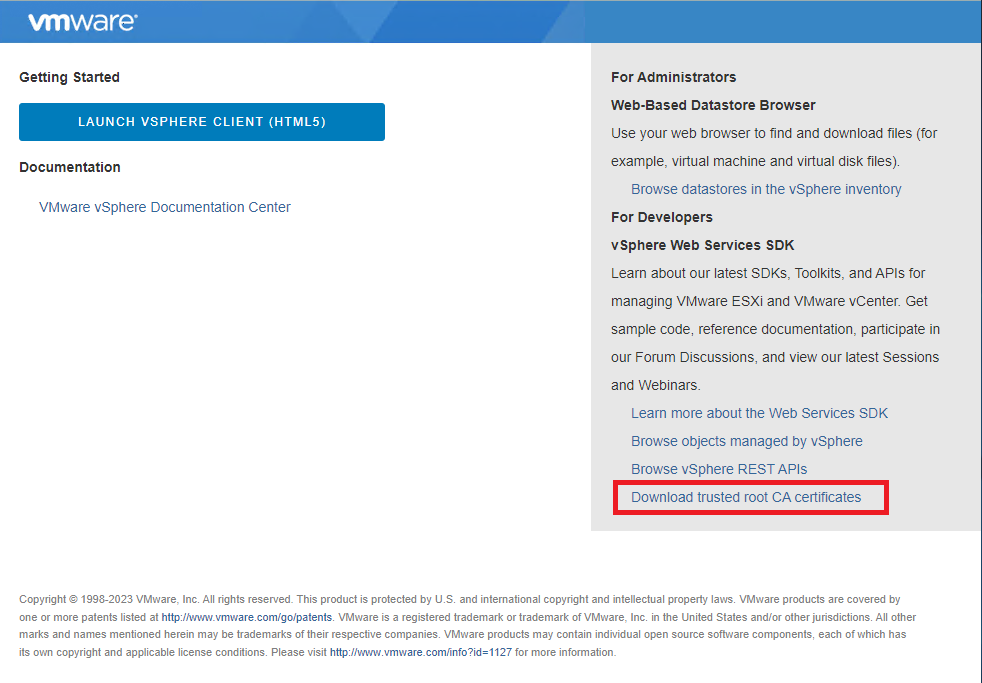
However not everybody wants to add certificates to their store just for an one time configuration. So there is a second option and that is to temporarily disable HSTS in the browser. You can do that in the settings of the browser, but it is a possibility that you forget to turn it on again after you’re done, and that poses a security risk. This is why I prefer to disable HSTS just for the session that I use the browser. To do this you have to get the install path of your browser.
The default locations for Chrome and Edge are:
- Chrome – C:\Program Files\Google\Chrome\Application
- Chrome (older versions) – C:\Documents and Settings\username\Local Settings\Application Data\Google\Chrome\Application\chrome.exe
- Edge – C:\Program Files (x86)\Microsoft\Edge\Application\msedge.exe
Unfortunately FireFox cannot be started with such a parameter If you want to use FireFox you have to edit the about:config settings or create a configuration profile for FireFox.
Now open a run box or a command prompt and enter the path + the executable + –ignore-certificate-errors, like so:C:\Program Files (x86)\Microsoft\Edge\Application\msedge.exe --ignore-certificate-errors
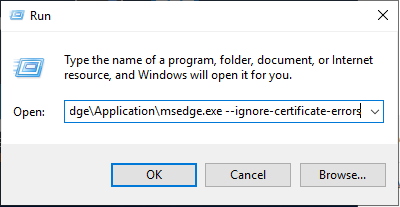
This will let you get to the servers web-interface on the FQDN without a warning. And after you close the browser, you don’t have to do anything as the default settings still have HSTS enabled.

Started his working life as a system manager at a health care organization. Is now a dedicated technical consultant at PepperByte. Specialist in virtualization and security.
Core qualities
Eager to learn, punctual, fun, loyal, patient
Hobbies
Socializing, watching television series and sports
Job description
Technical Consultant
Leave a Reply
Want to join the discussion?Feel free to contribute!