Intune and the New Microsoft Store
About a year and a half ago, Microsoft announced that they would be closing the Microsoft Store for Business in the second quarter of 2023. On its page there was a banner with a link to a blogpost about their new strategy (https://techcommunity.microsoft.com/t5/windows-it-pro-blog/evolving-the-microsoft-store-for-business-and-education/ba-p/2569423)

Unfortunately it wasn’t clear what we could expect and how to move corporate apps which are now in the Store for Business to the new method of delivery. The only thing we knew was that there would be a New Microsoft Store and that it was based on Microsoft’s own package manager WinGet.
WinGet is a package manager for Windows like Chocolaty, but made by Microsoft. You can compare it with Linux Package managers like apt-get and yum, or NuGet in PowerShell. Microsoft vision is to build all application delivery around WinGet, what will give great flexibility as you can use the Windows Package Manager Framework like an API. If you for example install an application from the Microsoft store and push an application from endpoint manager (Intune), you can update both those apps from the commandline using WinGet.
A year after the first blogpost, Microsoft posted a follow-up blogpost in which they said that the deadline of 31 march 2023 has been postponed (https://techcommunity.microsoft.com/t5/windows-it-pro-blog/update-to-endpoint-manager-integration-with-the-microsoft-store/ba-p/3585077).
This post gave more information about the new store and the new way of delivering apps to endpoint devices, however still no specific examples.
Now just a few months ago, Microsoft released a new option to Intune when adding apps to your Intune app repository. This option brings the new way of delivering apps via the WinGet to Intune, and it makes managing your apps a lot easier. On the left you see the options for deploying apps in the old situation and on the right the new options, which include “Microsoft Store app (new)”.

In the old method when you wanted to add an application from the Microsoft Store, you had to fill-in the fields by hand and go to the Microsoft Store to get URL to the application.

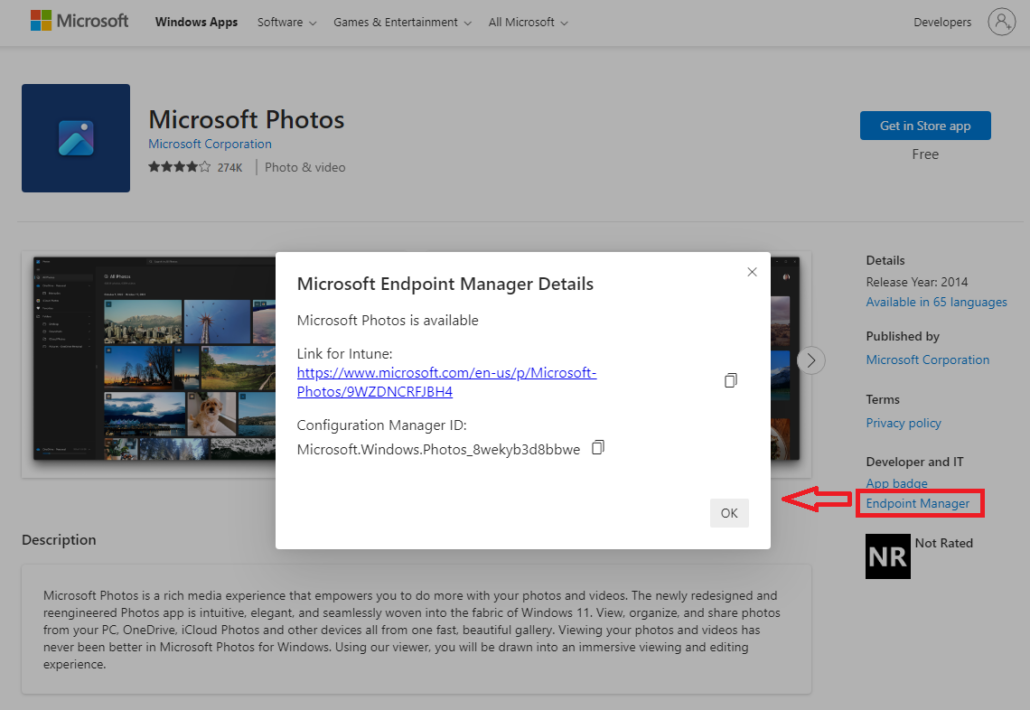
With the New Store addition, this process is far more simplified. When you select the “Microsoft Store app (new)” app type, you can search the entire Microsoft Store for applications and select the one you need.

Many fields are pre-filled for the selected app. You can still edit some of the app configuration like you would in the old situation, but you don’t have to and can just go ahead and deploy the app.
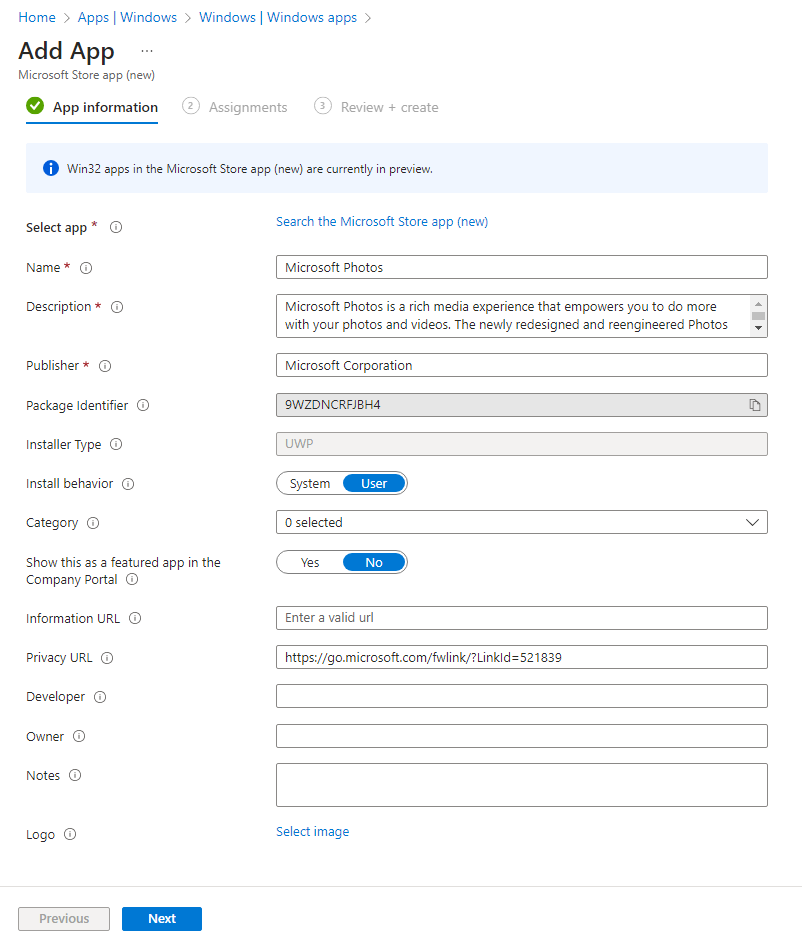
In conclusion there is no need anymore for a private store in the Microsoft Store for Business, as you can connect your private repository by means of the Windows Package Manager Framework. And adding Microsoft Store applications just became a lot easier in deploying and maintaining.

Started his working life as a system manager at a health care organization. Is now a dedicated technical consultant at PepperByte. Specialist in virtualization and security.
Core qualities
Eager to learn, punctual, fun, loyal, patient
Hobbies
Socializing, watching television series and sports
Job description
Technical Consultant
Leave a Reply
Want to join the discussion?Feel free to contribute!