How to migrate Ivanti Workspace Profiles to Microsoft Profile Containers (FSlogix)
I’ve recently started looking for a way to boost performance of our VDI environment. One aspect of the performance degradation is that the User Settings stored by Ivanti Workspace Control are taking their sweet time to load. Not at all surprising since the settings grow over time and there are a lot of tiny files in them that need to be copied over the network. I decided to look into Microsoft Profile Containers (FSlogix) because Ivanti has integration for this built into their software. FSlogix stores your entire profile in one vhdx file that is attached to Windows when you log into your VDI. No more copying small files, so users don’t get that hated message that Ivanti is still loading their settings when they open Outlook directly after logging in.
This works beautifully, but how can we migrate the Ivanti User Settings to FSlogix so users don’t lose their preferences? There are a lot of scripts online for various migration scenario’s but none apply to Ivanti Workspace Control. After some testing I came up with an easy solution that doesn’t require scripts and is fully automated. Here’s what you need to do:
Steps
- Go to User Context – Locations and Devices and create a zone called FSLogix. In the rules tab create a File or folder rule for the folder C:\Program Files\FSLogix

- Create a second (child)zone called FSLogix migrated. In the rules tab create a File or folder rule for the folder <Homedrive>\Personal Settings\FSLogixMigrated.txt. We’ll create that file later on. In the example below the Homedrive is O.

- Go to Workspace Containers and create a container for both zones. Check the checkbox Include all Agents on the Computer Control tab and add the appropreate zone to Locations and Devices on the Access Control tab:

- Go to Composition – User Home Directory and create a folder called Personal Settings. Open the properties and check the Hidden checkbox so the users can’t accidentally delete it’s contents. If you already have a hidden folder you can use that, just adjust the path in the FSLogix migrated zone if you do.

- Create an empty textfile somewhere called FSLogixMigrated.txt and add it to the hidden folder you just created.Then go to the Actions tab and add the new file. Set the Action property to Copy if target does not exist.

In the Access tab add the FSLogix zone: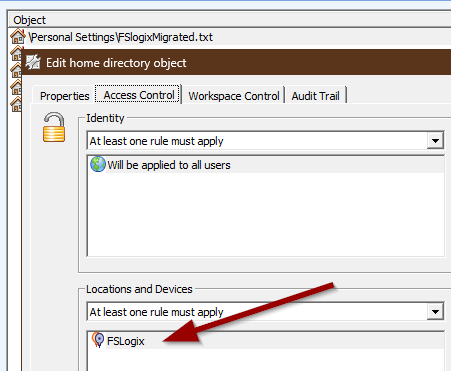
- Go to User Settings. If your global settings Application user settings are set to Prefetch in background, check on application start you can skip this step, otherwise use the [+] button to select the FSLogix container. Increase the priority until it’s the highest (all the way to the left). Set the Capture User Settings to Enabled and set Application user settings to Prefetch in background, check on application start.

- Use the [+] button to select the FSLogix migrated container. Increase the priority until it’s the highest (all the way to the left). Set the Capture User Settings to Disabled.

- In the top menu ribbon go to Setup – Microsoft Profile Containers. Use the [+] button to select the FSLogix container. Check the box labeled Enable Microsoft Profile Containers Integration. Set the Container Mode to Profile Containers and enter the location in the VHDX location(s) textbox.
That’s it, you’re done!
How this works
The first time a user logs in on a VDI where FSLogix is installed (FSLogix zone/container) a vhdx file is created and attached to Windows. FSlogix redirects the local profile to the attached disk and because Ivanti User Settings are set to prefetch everything in the background the users settings are slowly but surely being copied to the FSLogix disk. Also the FSLogixMigrated.txt is copied to the users homedrive in the hidden folder, so the next time the user logs in to a VDI where FSLogix is installed the session will also be in the FSLogix migrated zone, disabling Ivanti User Settings.
My next step in the performance boost is to utilize MSIX for application virtualization instead of App-V. Stay tuned!

Is an all-round IT engineer with special skills in Microsoft, Citrix, RES and VMware products. Loves a challenge in his work and has taught himself scripting. Initially batch scripts, and later PowerShell. This helps him to automate processes and procedures, and to develop his own management tools which can be used every day.
Core qualities
Team player, enthusiastic, eager to learn, sociable, positive
Hobbies
Football, playing music, watching movies and series
Job description
Senior Technical Specialist
Leave a Reply
Want to join the discussion?Feel free to contribute!