NTLM and Kerberos analysis
NTLM (NT LAN Manager) has been used as the basic Microsoft authentication protocol for quite a long time: since Windows NT. Although Microsoft introduced a more secure Kerberos authentication protocol in Windows 2000, the NTLM (generally, it is NTLMv2) is still widely used for authentication on Windows domain networks. In this article, we will consider how to disable NTLMv1 and NTLMv2 protocols and start using Kerberos in your Active Directory domain.
The main NTLMv1 problems:
- weak encryption;
- storing password hash in the memory of the LSA service that can be extracted using different tools (like mimikatz) and then the hash may be used for further attacks;
- the absence of mutual authentication between a server and a client that results in data interception attacks and unauthorized access to network resources (some tools such as Responder can capture NTLM data sent over the network and use them to access the network resources);
- and other vulnerabilities.
- Microsoft has decided to add the venerable NTLM authentication protocol to the Deprecated Features list. (https://learn.microsoft.com/en-au/windows/whats-new/deprecated-features)
Some of them were fixed in the next version NTLMv2 that uses more secure encryption algorithms and allows preventing popular NTLM attacks. NTLMv1 and LM authentication protocols are disabled by default starting with Windows 7 / Windows Server 2008 R2.
NTLMv2 is a bit better, since it variable length and salted hash, but not that much better. Even though hash it`s salted before it`s sent, it`s saved unsalted in a machine’s memory.
And off course, when we talk about NTLM, we talk about a challenge/response mechanism, which exposes its password to offline cracking when responding to the challenge.
Kerberos provides several advantages over NTLM:
- More secure: No password stored locally or sent over the net.
- Best performance: improved performance over NTLM authentication.
- Delegation support: Servers can impersonate clients and use the client’s security context to access a resource.
- Simpler trust management: Avoids the need to have p2p trust relationships on multiple domains environment.
- Supports MFA (Multi Factor Authentication)
On the domain controllers the following setting is (HKLM\System\CurrentControlSet\Control\Lsa\LmCompatibilityLevel) set to 2. This means that the following setting apply:
| Setting | Description | Registry security level |
| Send NTLM response only | Client devices use NTLMv1 authentication, and they use NTLMv2 session security if the server supports it. Domain controllers accept LM, NTLM, and NTLMv 2 authentication. | 2 |
This is not the standard setting!
Recommendation and solution
NTLM, NTLMv2 can be disabled on windows with registry settings or a policy. All servers need to be at least Windows 2008 R2! On the domain controllers the following setting should be (HKLM\System\CurrentControlSet\Control\Lsa\LmCompatibilityLevel) default settting is 3. This means that the following setting apply:
| Send NTLMv2 response only | Client devices use NTLMv2 authentication, and they use NTLMv2 session security if the server supports it. Domain controllers accept LM, NTLM, and NTLMv 2 authentication. | 3 |
| Send NTLMv2 response only. Refuse LM | Client devices use NTLMv2 authentication, and they use NTLMv2 session security if the server supports it.Domain controllers refuse to accept LM authentication, and they will accept only NTLM and NTLMv 2 authentication. | 4 |
| Send NTLMv2 response only. Refuse LM & NTLM | Client devices use NTLMv2 authentication, and they use NTLMv2 session security if the server supports it.Domain controllers refuse to accept LM authentication, and they will accept only NTLM and NTLMv 2 authentication. | 5 |
Implement NTLM Blocking
With group policy we can disable the older NTLM and only allow Kerberos, this is known as NTLM blocking. Before doing this however, you should check and ensure that both Microsoft and third party applications in your network do not require NTLM authentication before proceed ing.The group policy options for NTLM are found under Computer Configuration > Policies > Windows Settings > Security Settings > Local Policies > Security Options.
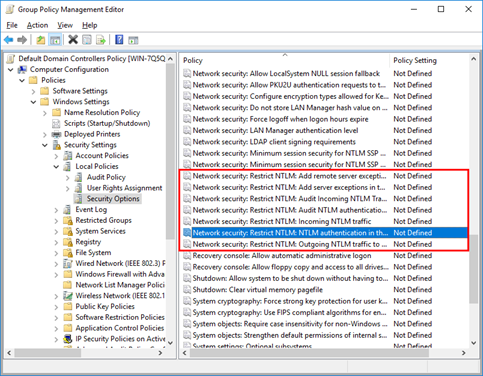
Restrict NTLM in the domain
We will start by looking at the “Network Security: Restrict NTLM: NTLM authentication in this domain” policy. Once the policy has been selected, we can tick to define it and then select an option f rom the drop down menu as shown below. This policy allows us to allow or disable NTLM authentication within the domain.

- Disable: This disables the policy, and allows NTLM authentication within the domain.
- Deny for domain accounts to domain servers: The domain controllers within the domain will deny all NTLM attempts to all servers in the domain using domain accounts and return an NTLM blocked error.
- Deny for domain accounts: The domain controller will deny all NTLM authentication attempts from domain accounts and return an NTLM blocked error.
- Deny for domain servers: The domain controller will deny NTLM authentication requests to all servers in the domain and return an NTLM blocked error.
- Deny all: The domain controller will deny all NTLM pass-through requests from its servers and for its accounts, returning an NTLM blocked error.
Rather than configuring all NTLM authentication in the domain, we can also work with the “Incoming NTLM traffic” and “Outgoing NTLM traffic to remote servers” policy items.
It should also be noted that this policy is supported in Windows 7 and Windows Server 2008 R2 or newer.
Be Careful!
SQL servers and manufacturing machines (by example CNC machines) can also use NTLM for authentication. They have to be checked before disabling NTLMv1 and or NTLMv2. The new authentication method uses Kerberos.
Leave a Reply
Want to join the discussion?Feel free to contribute!