Task Sequence Reporting using a Teams Webhook
A task sequence is a great way to do OS deployment on a device but it can be something that can take a while to complete and if the Task Sequence fails you may just find out much later when you (or the person in charge of OSD) check on the status.
The Monitoring in Configuration Manager also doesn’t give a good representation of what happened during OSD and we don’t really want to dive into the logging created during OSD if we don’t have to.
Luckily Configuration Manager does keep track of the things that happen during OSD in it’s Status Message Queries and using Status Filter Rules, Microsoft Teams and a bit of PowerShell we can send these messages to a teams channel using mail or a webhook.
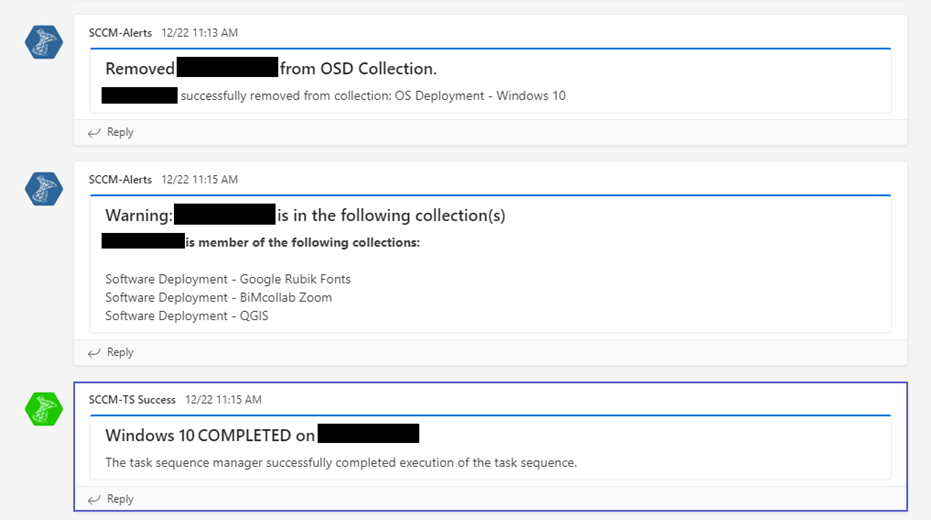
In the environment I’m working in we don’t use the ‘unknown computers’ collection for OSD so computers are added to SCCM and the OSD collection manually. To prevent this OSD collection from filling up and enabling users to PXE boot accidentally I will also show how to use the success status to remove the device from the OSD collection.
Status Messages
To use the status filter rules we need to get the ID if the status messages that are created. To get these ID’s first start OSD on a device (and wait for it to complete) then, in the configuration manager console, go to Monitoring –> System Status –> Status Message Queries –> Right Click the ‘All Status Messages’ Query –> Click ‘Show Messages’

Next specify a time of how far back in time the logs will need to be displayed. In my current task sequence the default of 1 hour will be sufficient but feel free to pick a longer time, we will filter on the machine name later anyways.

On the Status Message viewer click the filter button and enter the computer name in the ‘system’ field.
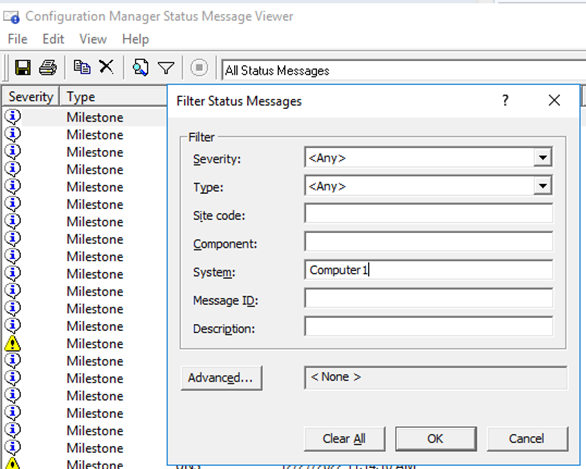
These are the ones I’ve used:
| Message ID | Description |
| 11144 | Entry is created when the task sequence engine started the execution of a task sequence. (use this, not 11140 as it will generate multiple messages) |
| 11171 | The Task Sequence is completed successfully. |
| 11170 | The Task Sequence failed (this message is created after the Error Dialog is closed so if you have set SMSTSErrorDialogTimeout to a high value like 86400 it may be better to change that to a lower value). |
| 11141 | This reports every step that did not complete but it can generate a lot of messages when you have steps being skipped or set to continue on error. I’ve created a status filter rule for it but keep it disabled unless I need it for troubleshooting. |
| 11142 | Is reported when the machine is rebooted during task sequence (not using this myself) |
We also need to note the package ID of the task sequence, this can be found under Task Sequences in the Software library, or you can just open status messages with ID 11140 or 11144 and get the package ID from there.
PowerShell and Command line script for reporting
I’m not going to share the exact code I’ve used as it may likely not fit your needs, I will however share some pieces of code I’ve used to make this work.
The way I did things may not be the most straight forward but have given me the best results so I just stuck to them. The status filter rule will be setup to execute a script (.cmd) with some arguments, the script will then run a PowerShell script with those arguments.
The script files will need to be placed on the primary site server as the status filter rule will be ran from there.
The command line in the status filter rule could be something like this:
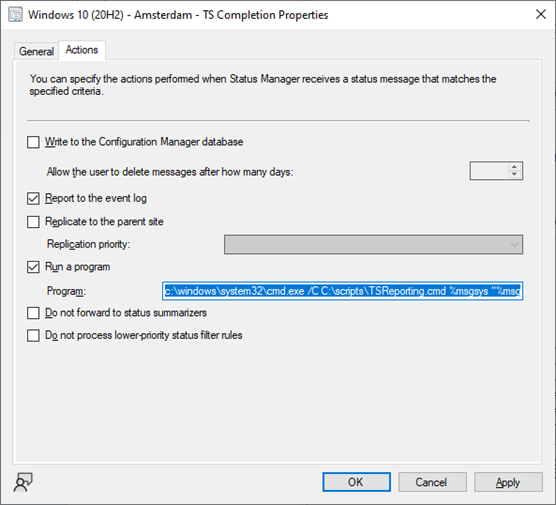
c:\windows\system32\cmd.exe /C C:\scripts\TSReporting.cmd %msgsys "%msgdesc" "Windows 10 TS” “completed” "OSD Windows 10"%msgsys – This returns the OSDComputername
%msgdesc – This returns the message description of the status filter message
The CMD file could look something like this:
@echo off

set computer=%1
set message=%2
set TS=%3
set status=%4
set collection=%5

if "%collection%"=="" GOTO NOCOLL
if NOT "%collection%"=="" GOTO COLL

:NOCOLL
powershell -file %~dp0Send_Webhook.PS1 -ComputerName %computer% -TS %TS% -MSG %message% -Status %status% -Message %message%
GOTO DONE

:COLL
powershell -file %~dp0Send_Webhook.PS1 -ComputerName %computer% -TS %TS% -MSG %message% -Status %status% -Message %message% -Collection %collection%
GOTO DONE

:DONE
echo done!
Here’s some of the PowerShell code that I’ve used using the arguments passed from the command line:
Remove-Device
function remove-device {

param(
[string]$ComputerName,
[string]$Collection
)

connect-site

Remove-CMCollectionDirectMembershipRule -CollectionName "$Collection" -ResourceName "$ComputerName" -Force
$checkpc = Get-CMCollectionDirectMembershipRule -CollectionName "$Collection" -ResourceName "$ComputerName"

if ($checkpc -gt $null){
Write-Host "$ComputerName removed from : $Collection"
}

}
This function uses the computer name and collection name passed from the command line to remove the computer from the collection, this is used when the task sequence is completed.
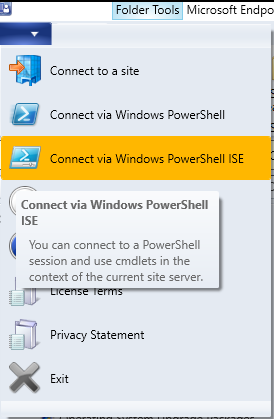
To remove the device you will also need the configuration manager module and a site connection. You can generate this code by clicking open the menu next to ‘Home’ in your configuration manager console, then clicking ‘Connect via Windows PowerShell ISE’, the code shown you can either paste under Param() or make a function out of it and call it from within the remove-device function like I did.
Send-Webhook
I’ve created multiple webhooks in the teams channel to make use of a different color avatar to make clear if a warning is an error a success or just a warning, this is not really a requirement but it looks nice in the teams channel.
The ‘body’ for the webhook is send as a JSON so this will need to be created before sending the HTTPS request using ‘Invoke-Restmethod’
function send-Webhook {

param(
[string]$Message,
[string]$TS,
[string]$Status,
[string]$Subject
)

#default URI

    if ($Status -eq "failed"){
$Subject = "$TS FAILED on $ComputerName"
$URI =
    }
    elseif ($Status -eq "success"){
$Subject = "$TS COMPLETED on $ComputerName"
$URI =
    }
        elseif ($Status -eq "started"){
$Subject = "$TS STARTED on $ComputerName"
$URI =
    }
    elseif ($Status -eq "error"){
$Subject = "$TS ERROR on $ComputerName"
$URI =
    }
    elseif ($Status -eq "message"){
$URI =
    }
    else{
$URI =
$Subject = "$TS ended with an UNKNOWN state on $ComputerName"
    }

$JSONBody = @{
"@type" = "MessageCard"
"@context" = "<http://schema.org/extensions>"
"summary" = "$Message"
"themeColor" = '0078D7'
"title" = "$Subject"
"text" = "$Message"
}

$TeamMessageBody = ConvertTo-Json $JSONBody

$parameters = @{
"URI" = $URI
"Method" = 'POST'
"Body" = $TeamMessageBody
"ContentType" = 'application/json'
}

Invoke-RestMethod @parameters
}
Of course, it’s also possible to send the message to teams using mail (send-mailmessage) at least if it’s permitted to send SMTP mail in your organization.
Teams Webhook
I’m going to assume the teams channel is in place and that you have the option to setup an incoming webhook. If you do not have the option to setup an incoming webhook it may well be that 3rd party connectors aren’t allowed in your organization so you may need to fix that first (or use mail).
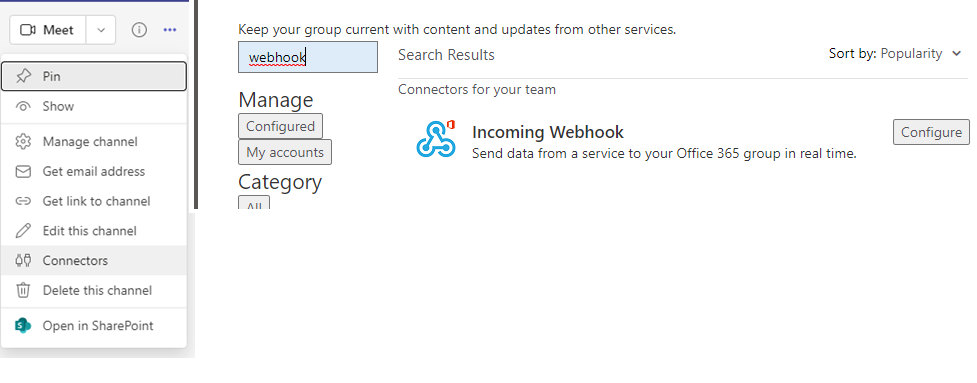
To create the webhook go to your teams channel in teams and click the ‘…’ menu in the top right, click Connectors. Search for the Incoming Webhook connector and click Configure:
Now just give a name to the connector and upload an image for the webhook, after it’s setup to your likings click create.
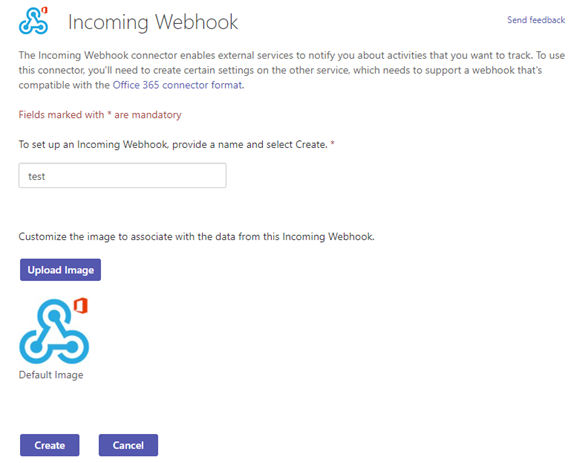
Then copy the URL for your (PowerShell) script
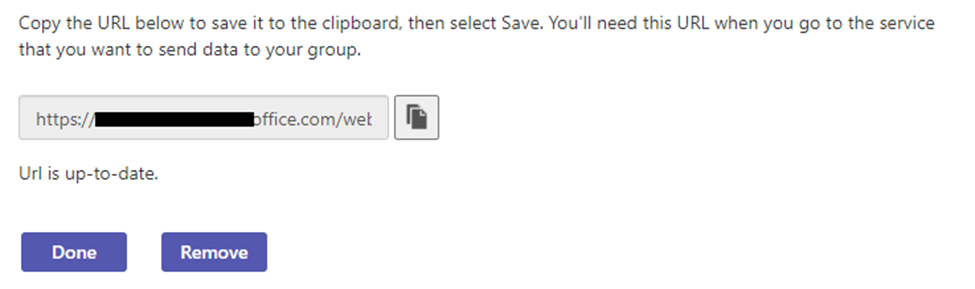
Now we should have everything to setup the status filter rules for sending the webhook.
Status Filter Rules
To setup the reporting we need to configure a status filter rule. To do this go to the Administration pane in Configuration Manager –> under Site Configuration, click Sites –> Right click the site you want to configure the status filter rule on and click status filter rules.
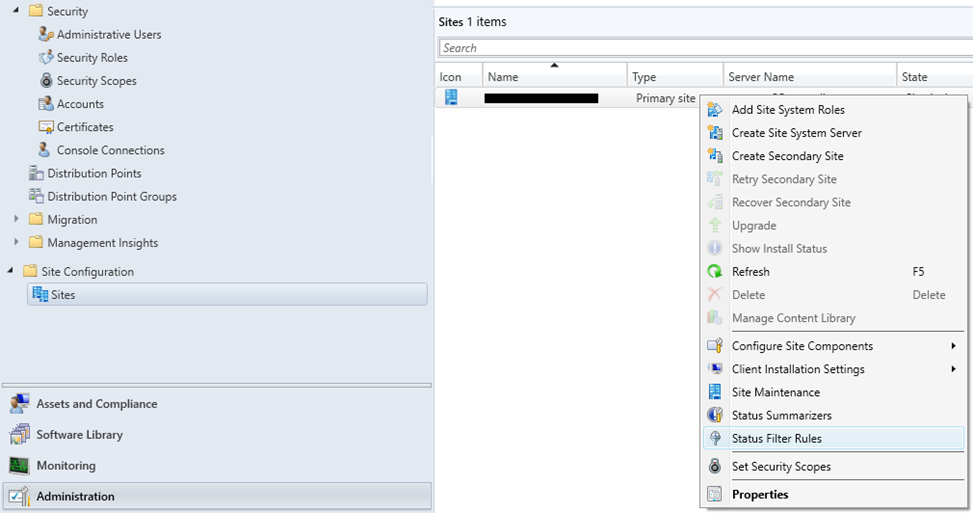
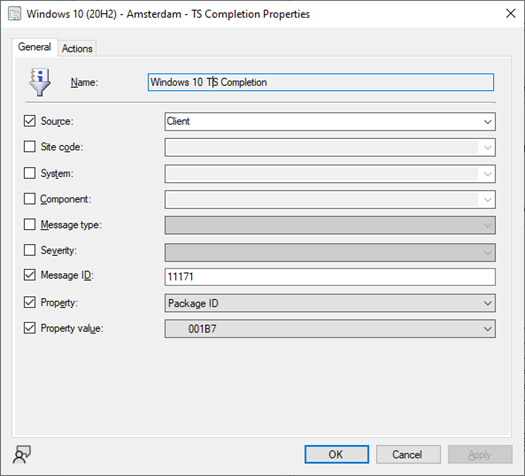
On the General page we need to configure a few settings:
Source: Client
Message ID: enter one of the message IDs noted before referring to the type of message you want to report.
Property: Package ID
Property value: The package ID of your task sequence
On the Actions tab the only thing required is to configure ‘Run a program’ with the command line referring to the cmd file and the arguments as described earlier. Click ok to save the changes and we’re ready for testing.
To check in what collections a device that’s being reinstalled was previously added I’ve added a script that displays these collections. Eventho a device should be removed from SCCM prior to reinstallation (for a new user) to clear these collections this overview will make it clear to the helpdesk if this hasn’t happened and what installations should still be expected after OSD is completed.
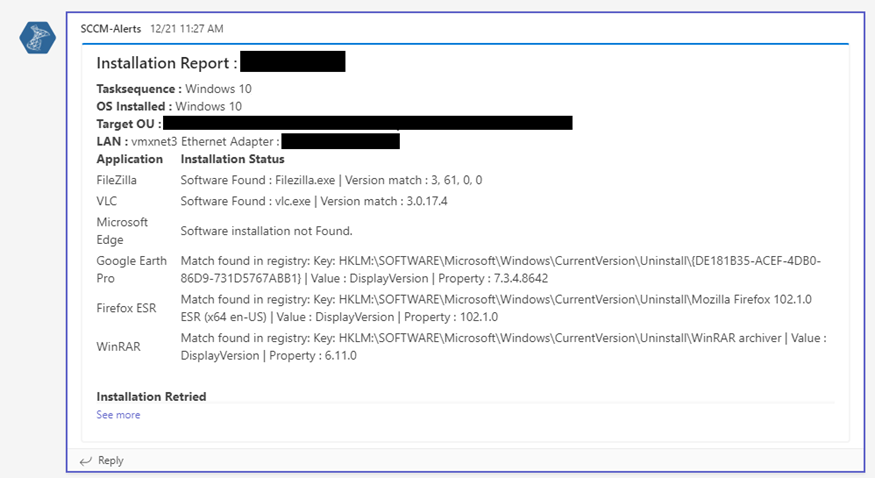
There’s also a script to check if the selected software was successfully installed, this script runs from the client and so during OSD but is using the same webhook.
This way the task sequence can have software installations set to continue on error and our helpdesk will know exactly what to check for after OSD is finished.
Leave a Reply
Want to join the discussion?Feel free to contribute!