Troubleshooting Google SSO Login Issue in SharePoint and Teams via Azure Federation
Many organizations use Google SSO to allow users to access different applications without remembering multiple usernames and passwords. However, issues may arise when integrating Google SSO with SharePoint or Teams via Azure Federation. One of the common issues is that users cannot log in due to differences in ImmutableId and UserPrincipalName (UPN). This article outlines the troubleshooting steps to address this issue.
PROBLEM
Users cannot log in to SharePoint or Teams sites via Google SSO with the federation in Azure. The issue arises when users’ ImmutableId is not the same as UPN. They will receive the following error:
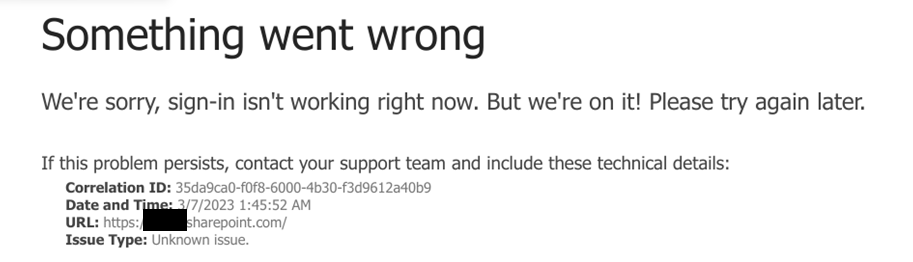
To troubleshoot the login issue with Google SSO in SharePoint or Teams via Azure Federation, follow these PowerShell commands:
- Connect to PowerShell
- Import the MSOnline module
- Enter your admin account credentials
- Connect to MSOnline service
- Get the ImmutableId for the user with incorrect UPN
- Check if the ImmutableId matches the UPN
- If not, set the UserPrincipalName to a temporary value that is not Federated
- Set the ImmutableId to the correct value
- Set the UserPrincipalName back to the Federated value
- Check if the ImmutableId is now correct
Here are the PowerShell commands to accomplish these steps:
Connect-MsolService
$msolCred = Get-Credential
Connect-MsolService -Credential $msolCred
get-MsolUser -UserPrincipalName “[email protected]” | select {$_.immutableid}
Set-MsolUserPrincipalName -UserPrincipalName “[email protected]” -NewUserPrincipalName [email protected]
set-MsolUser -UserPrincipalName “[email protected]” -ImmutableId [email protected]
Set-MsolUserPrincipalName -UserPrincipalName “[email protected]” -NewUserPrincipalName [email protected]
get-MsolUser -UserPrincipalName “[email protected]” | select {$_.immutableid}
Note: Replace “[email protected]” with the actual UPN of the user-facing the log in issue.
IF THE ISSUE PERSISTS
If the log in issue with Google SSO in SharePoint or Teams via Azure Federation persists, further investigation revealed that the problem is related to the certificate in the connection between Azure and Google GSuite. This can be identified from the Azure – Azure Active Directory – User – Sign-in logs, which may show the error “Unable to verify the token signature. The signing key identifier does not match any valid registered keys.”
I investigate the issue further and discover that the PEM certificate on the Web and mobile apps that are connected to the Azure Federation has expired. To fix this problem, I generate a new PEM certificate and follow these steps:
- Generate a new PEM certificate
- Connect to the Windows Azure Active Directory Module using PowerShell
- Enter your Azure admin credential
- Get the MSOL domain federation settings for your domain
- Retrieve the renewed certificate in base64 format and remove all the header/footer/carriage returns to make a single-line base64 string
- Set the SigningCertificate and NextSigningCertificate to the new certificate using PowerShell
- Verify the certificate update
Here are the PowerShell commands to accomplish these steps:
# Connect to the Windows Azure Active Directory Module using PowerShell.
Import-Module MSOnline
Connect-MsolService

# Enter your O365 admin credentials.
$msolCred = Get-Credential
Connect-MsolService -Credential $msolCred

# Get the MSOL domain federation settings for your domain.
$domainName = “”
$federationSettings = Get-MsolDomainFederationSettings -DomainName $domainName

# Retrieve the renewed certificate in base64 format and remove all the header/footer/carriage return to make a single line base64 string.
$cert = “”
$cert = $cert.Replace(“\r\n”,””)

# Set the SigningCertificate and NextSigningCertificate to the new certificate using PowerShell.
Set-MsolDomainFederationSettings -DomainName $domainName -SigningCertificate “$cert” -NextSigningCertificate “$cert” -PreferredAuthenticationProtocol “SAMLP”

# Verify the certificate update with Get-MsolDomainFederationSettings.
Get-MsolDomainFederationSettings -DomainName $domainName
By following these steps, the certificate issue in the connection between Azure and Google GSuite was resolved, allowing users to log in to SharePoint and Teams sites via Google SSO with Azure Federation.

Is interested in everything connected to technology. Has a passion for cloud, virtualization and software development. Always finds appropriate IT solutions for customers that match their needs strategically, technically and financially.
Core qualities
Quick thinker, result driven, ambitious, customer-friendly, enthusiastic
Hobbies
Running, listening to music, good food and doing fun things with family
Job description
CTO PepperByte, LoadGen, and BlueParq
Leave a Reply
Want to join the discussion?Feel free to contribute!