vROPS Admin Lockout
When logging in at the administrative page of vRealize Operations Manager (https://fqdn/admin) after a long time, it can happen that you will get an error message stating “Incorrect User name/Password”. You are sure that you entered your credentials correct, but you won’t get past the error message.
There are three possible reasons for this problem:
1. The password is expired
2. The account is locked out in Linux
3. The account is locked out in vROPS
If the password is expired you can reset it by logging in to the vROPS master node and run passwd admin or $VMWARE_PYTHON_BIN $VCOPS_BASE/../vmware-vcopssuite/utilities/sliceConfiguration/bin/vcopsSetAdminPassword.py --reset.
If the account is locked out in Linux you can reset it by running pam_tally2 --user admin --reset on the master node.
Both of these methods are described in detail at https://kb.vmware.com/s/article/2078313
Although you can find many blogs about locked accounts and expired passwords in vROPS, there is very little written about the locked out admin account in vROPS.
The locking of the admin account happens mostly because of installed adapters in vROPS that use the admin account to connect. When the password of the admin account is updated, the adapters are forgotten and will try to connected to vROPS with the old password, resulting in too many failed attempts and locking of the admin account. This is why VMware suggest that you make a service account and use that for connecting adapter instances to vROPS.
You can check if the admin account is lockout, by logging in to vROPS with your own account and go to Administration -> Access -> Access Control. There you’ll see all accounts and if they are locked.
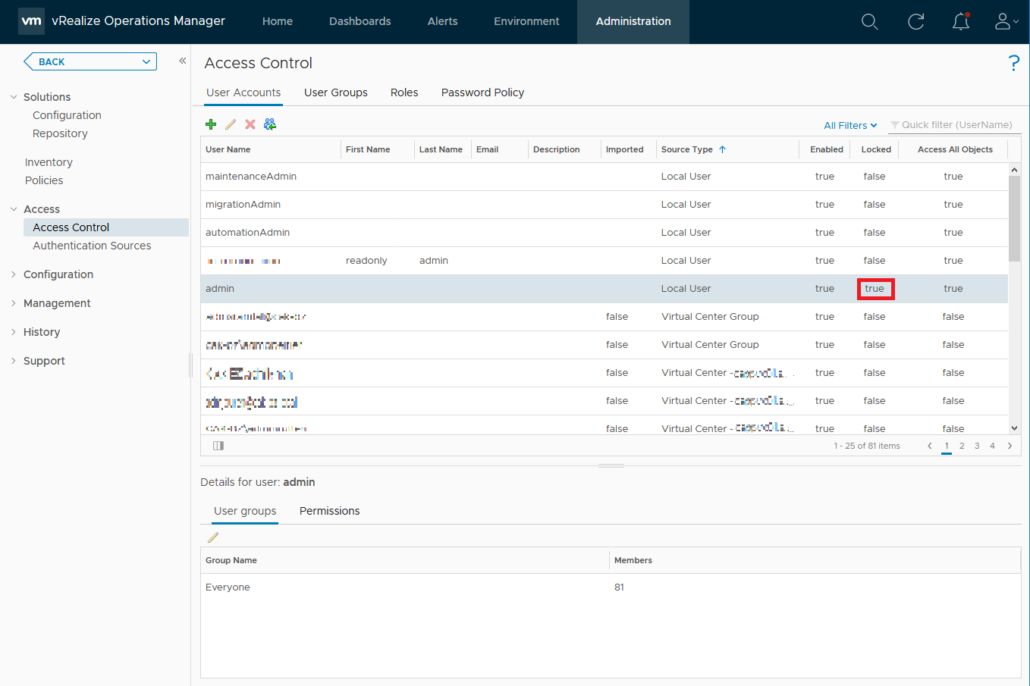
The solution to this kind of lock costs a little more effort than the other problems. To get rid of the lock, you’ll have to edit the file /storage/vcops/user/conf/adminuser.properties on all nodes of the vROPS cluster.
The file contains a line that tracks the number of failed login attempts. When this counter gets too high, the account will be locked in vROPS.

To resolve this, simply remove the whole line and save the file. vROPS will add the line again when the first failed attempt has occurred.

More information can be found at the VMware knowledgebase https://kb.vmware.com/s/article/2131633

Started his working life as a system manager at a health care organization. Is now a dedicated technical consultant at PepperByte. Specialist in virtualization and security.
Core qualities
Eager to learn, punctual, fun, loyal, patient
Hobbies
Socializing, watching television series and sports
Job description
Technical Consultant
Leave a Reply
Want to join the discussion?Feel free to contribute!