PowerShell Script to trick Stub files to be loaded on disk
A customer we are working with is busy with migrating to an online platform from on-premise. To accomplish this the data must be transported with physical disks. The data is stored on a physical machine and the backup suite used is Commvault. This script is not exclusively for Commvault as the script only targets the Windows File System.
Commvault gives you the option to Archive data (http://documentation.commvault.com/commvault/v11/article?p=25824.htm) in order to save disk space. The result of this is that files have an X or are greyed out in Windows Explorer. This changes when the file is opened and the file is loaded from the archive. See below for an example of archived files:

Because the data had to be transported the stub (placeholder) files had to be converted to ‘normal’ files. To do this, we took PowerShell to the test.
We want to declare the path name to the location where the archived/stub files are located.
# Path Location
$FullPath = \\SERVER\DATA\
It is possible to use a date when you, for example, know when the last archiving took place and only want to process these files. This can significantly reduce the total operation time (depending on the non-archived files).
# If needed you can specify the date when the data was (last) archived
$ArchiveDate = Get-Date "2015/06/01" -format yyyy/MM/dd
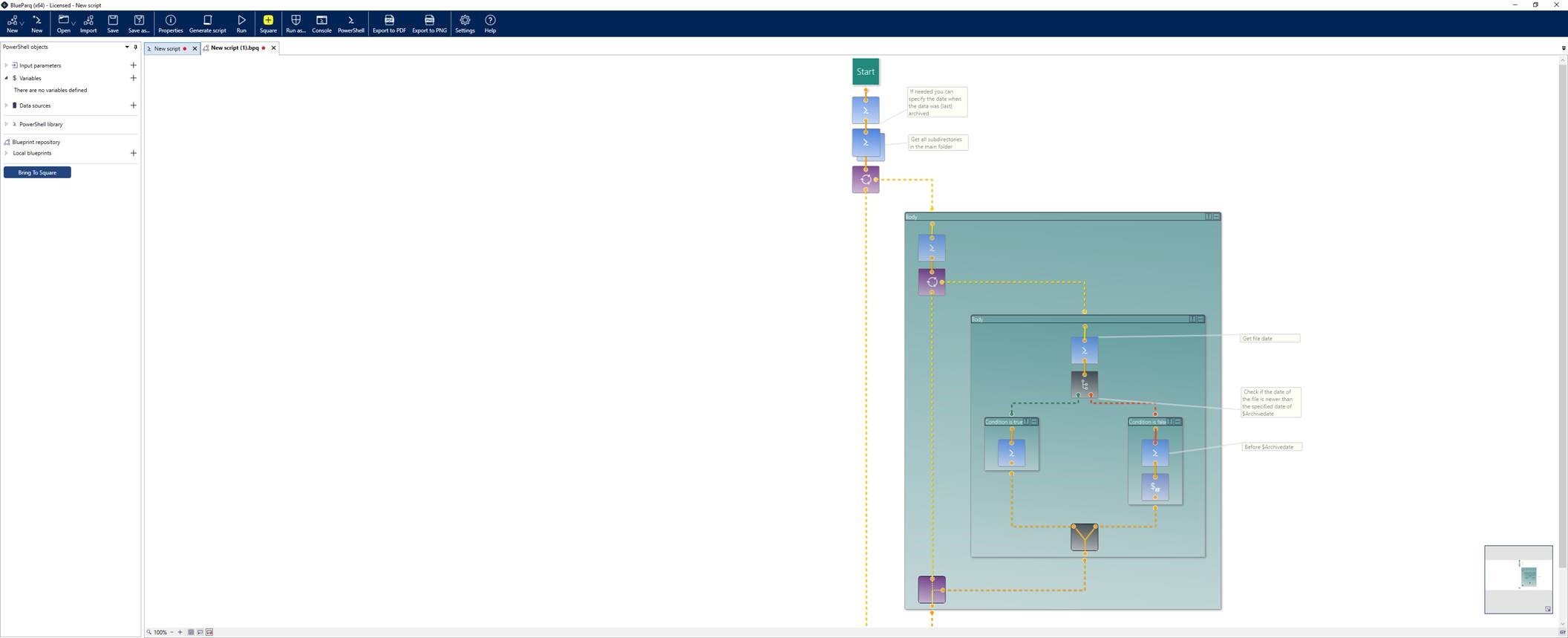
The main part of the script will get the directories and will loop through these. We check on the date supplied and the file item date. If the file is older than the $ArchiveDate the script will read the content of the file. The output of ReadLine() is sent to $null so we don’t get all the contents in the output.
# Get all subdirectories in the main folder
$SubDirectories = Get-ChildItem -Path $FullPath -Recurse | Where-Object {$_.PSIsContainer} | Select-Object -ExpandProperty FullName

foreach ($Dir in $SubDirectories) {

    $ChildItems = (get-childitem ($Dir))

        foreach ($FileItem in $ChildItems) {

            # Get file date
            $DateFileWrite = Get-Date $FileItem.LastWriteTime -format yyyy/MM/dd

            # Check if the date of the file is newer than the specified date of $Archivedate
            if ($DateFileWrite -gt $ArchiveDate) {
                # File is newer and skip
                }
            else {
                # Before $Archivedate
                $reader = New-Object System.IO.StreamReader((($Dir) + "\" + ($FileItem)))
                [void]$reader.ReadLine()
                $reader.Close()
                }
            }
    }
When testing with the command Get-Content the speed was not what we hoped for. After some researching we found out that using the command New-Object System.IO.StreamReader would yield much quicker results. New-Object System.IO.StreamReader is 50% faster than Get-Content, thanks to the following post (https://stackoverflow.com/questions/44462561/system-io-streamreader-vs-get-content-vs-system-io-file) which inspired us to look further than Get-Content.
Complete script:
# Path Location
$FullPath = "\\SERVER\DATA\"

# If needed you can specify the date when the data was (last) archived
$ArchiveDate = Get-Date "2015/06/01" -format yyyy/MM/dd

# Get all subdirectories in the main folder
$SubDirectories = Get-ChildItem -Path $FullPath -Recurse | Where-Object {$_.PSIsContainer} | Select-Object -ExpandProperty FullName

foreach ($Dir in $SubDirectories) {

    $ChildItems = (get-childitem ($Dir))

        foreach ($FileItem in $ChildItems) {

            # Get file date
            $DateFileWrite = Get-Date $FileItem.LastWriteTime -format yyyy/MM/dd

            # Check if the date of the file is newer than the specified date of $Archivedate
            if ($DateFileWrite -gt $ArchiveDate) {
                # File is newer and skip
                }
            else {
                # Before $Archivedate
                $reader = New-Object System.IO.StreamReader((($Dir) + "\" + ($FileItem)))
                [void]$reader.ReadLine()
                $reader.Close()
                }
            }
    }
Together with our sister company BlueParq, we are developing a visual PowerShell builder, an editor and the square where you can share your BluePrints. So how does above script looks like in the BlueParq console?

Started working in IT since 2016 for several Managed Service Providers. IT is always changing, which is why I like to learn from others. A challenge is never too much and will try to get my work up to a higher level each time.
Personal characteristics:
Motivated, calm, sincere and honest
Free time spending:
Kickboxing, technology, cars and day trips
Leave a Reply
Want to join the discussion?Feel free to contribute!