Set Citrix policies via PowerShell
Author : Ingmar Verheij

Since Citrix XenApp 6.0 and XenDesktop 5.0 policies are configurable via a new method. As a bonus Citrix made it possible to configure the policies via Group Policy Objects (GPO’s) in Active Directory.
This is especially useful if you want to set Citrix policies unattended, or automated. This way you can use it in a deployment or incorporate it in your own (provisioning) tool.
In this article I’ll explain how you can set Citrix XenApp 6.5 policies in a GPO via a PowerShell script from a remote machine. You can execute the commands from any domain joined machine, there’s no need to execute the script from a Citrix server or Active directory Domain Controller.
Prerequisites
The Citrix policies in a Group Policy Object (GPO) are configured in a custom interface, supplied by Citrix during installation of XenApp 6.5. To configure the policies from PowerShell the XenApp 6.5 PowerShell SDK needs to be installed on the machine where you’ll be executing the script.
The XenApp 6.5 PowerShell SDK can be downloaded here. I found out it is necessary to execute the installer with elevated rights (Run as Administrator), otherwise no dialog where shown.
Secondly you need the PowerShell module Citrix.GroupPolicy.Commands.psm1 (supplied by Citrix) that contains some wrappers around policies. More information about the module can be read here.
Preparation
First we need to load the module (Citrix.GroupPolicy.Commands.psm1) in the PowerShell script so we can use the functions.
#Import module
Import-Module .\Citrix.GroupPolicy.Commands
And add the PowerShell snap-ins from the PowerShell SDK
#Add PowerShell snapins (if necessary)
if ( (Get-PSSnapin -Name Citrix.Common.GroupPolicy -ErrorAction SilentlyContinue) -eq $null ) { Add-PSSnapin Citrix.Common.GroupPolicy }
if ( (Get-PSSnapin -Name Citrix.Common.Commands -ErrorAction SilentlyContinue) -eq $null ) { Add-PSSnapin Citrix.Common.Commands }
if ( (Get-PSSnapin -Name Citrix.XenApp.Commands -ErrorAction SilentlyContinue) -eq $null ) { Add-PSSnapin Citrix.XenApp.Commands }
Now we can connect an object to a Group Policy Object (GPO) to a Windows PowerShell drive.
#Connect PowerShell drive to Citrix domain GPO
New-PSDrive -Name CitrixGPO -PSProvider CitrixGroupPolicy -Root \ -DomainGPO "Citrix GPO"
In this example I connect the Windows PowerShell drive CitrixGPO.to the domain GPO “Citrix GPO”.
NOTE: The examples found in the XenApp 6.5 PowerShell SDK referers to the –FarmGPO setting. This setting connects the Windows PowerShell drive to the policy in the farm (instead of a Active Directory GPO) but can only be used from a Citrix XenApp system, not from a remote machine.

After your done with setting Citrix policies you need to remove the Windows PowerShell drive with this command.
#Close PowerShell Drive from Citrix domain GPO
Remove-PSDrive -Name CitrixGPO
Reading and writing policy objects
Multiple Citrix policy objects can reside in a Active Directory Group Policy Object. By default there are two 1) a Computer policy object named “Unfiltered” and 2) a User policy object named “Unfiltered”.
Reading
In order to change the setting of a policy object you need to read the content of the policy object.
#Read Citrix user policy
$objCitrixPolicy = Get-CtxGroupPolicyConfiguration -PolicyName "Unfiltered" -Type user -DriveName CitrixGPO
In this example I read the content of the “Unfiltered” policy object of the User configuration from the drive CitrixGPO and place it in the $objCitrixPolicy variable.
Writing
After you’ve set the settings in the policy object it need to be written to the Active Directory Group Policy Object.
#Write Citrix user policy
Set-CtxGroupPolicyConfiguration $objCitrixPolicy -DriveName CitrixGPO
In this example I wrote the content of the $objCitrixPolicy variable to the CitrixGPO drive.
Group Policy Settings
The settings in the policy objects that can be configured can be found in the Citrix XenApp 6.5 Commands Reference (found in the start menu after installing the XenApp 6.5 PowerShell SDK). Here you’ll find an item called Group Policy Settings with two nodes: Computer Settings and User Settings.
All settings that can be configured in a GPO can be found here, including the values you can set. Mainly there are two type of settings, boolean data types and non-boolean data types.
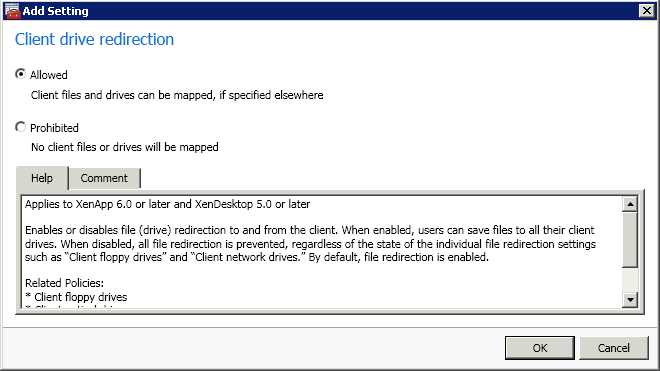 Boolean data types, like ClientDriveRedirection, are either Allowed or Prohibited. These settings are configured by setting the State object to Enabled or Disabled.
$objCitrixPolicy.("ClientDriveRedirection").State = "Enabled"
 Non-boolean data types, like AudioQuality, have multiple values that can be chosen from a dropdown box. These settings are configured by setting State to Enabled and filling the Value field with the appropriate setting which can be found in the Commands Reference.
$objCitrixPolicy.("AudioQuality").State = "Enabled"
$objCitrixPolicy.("AudioQuality").Value = 2


If you’re not sure if this is a Boolean data type or not, just check if the Value property equals Null.
#Set policy setting
If ($objCitrixPolicy.("SETTING").Value -ne $null)
{
   $objCitrixPolicy.("SETTING").Value = "VALUE"
   $objCitrixPolicy.("SETTING").State = "Enabled"
} else
{
   $objCitrixPolicy.("SETTING").State = "VALUE"
}
Where SETTING equals the user/computer setting you want to set and VALUE the value of the setting 
Clear all existing settings
If you want to clear all existing settings in a policy object you can use this script:
#Clear all existing settings
foreach ($objCitrixPolicyProperty in @($objCitrixPolicy | Get-Member -Type Properties | Select -Expand Name))
{
   $config = $objCitrixPolicy.$objCitrixPolicyProperty
   if ($config.State -ne $null) { $objCitrixPolicy.($objCitrixPolicyProperty).State = "NotConfigured" }
}

Was once an enthusiastic PepperByte employee but is now working at Citrix. His blogs are still valuable to us and we hope to you too.